
Aplication name: Onlive QPass
IOs App: https://apps.apple.com/es/app/onlive-qpass/id6771522132
Android App: https://play.google.com/store/apps/details?id=ai.onlive.qpass
To scan the QR codes that users receive when booking an appointment, agents must have the Onlive.Site QR scanning application installed on their device.
If your account was already set up for QR code scanning, you will receive an email asking you to reset your credentials by creating a new password.
If you do not receive this email, you can access the VMS platform directly. Your user account will already have been created, but you will need to reset your password by clicking “Forgot my password,” as it will initially have been set with a temporary password.
To access the platform, you can follow the instructions shown in the video below. Alternatively, you will also find the same steps explained in writing afterwards.
Platform access
Once you have reset your password, you will be able to access the platform, where you will find the links to download the mobile application.
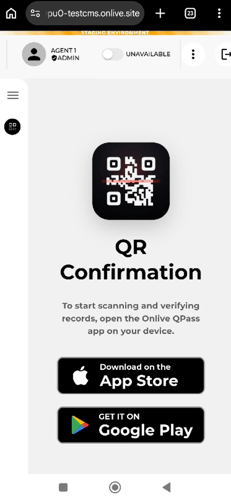
Select the link that corresponds to your device’s operating system (iOS or Android) and complete the installation.
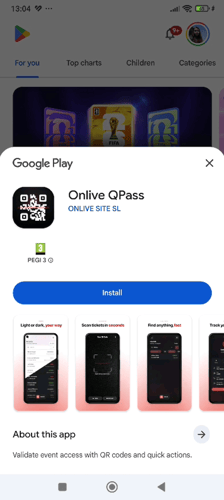
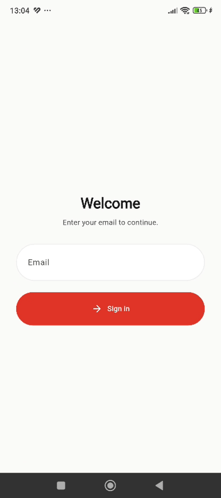
Application login
After installing the application, log in using the same credentials you configured to access the platform.
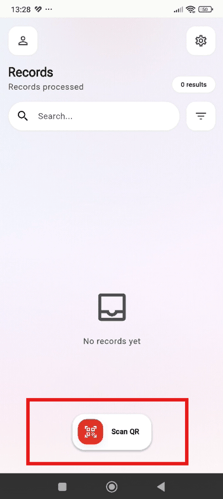
From that moment on, you will be able to use the application to scan appointment QR codes.
Registration of a new user for QR code scanning
The creation of new users for QR code scanning can only be performed by a user with Administrator permissions within the group.
To register a new person, the administrator must access the Users section of the platform.
Once inside this section, they must click the “Invite User” button.
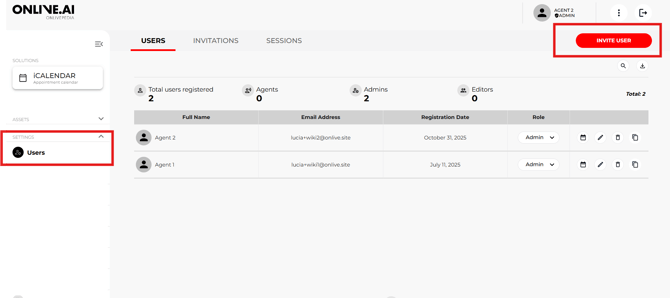
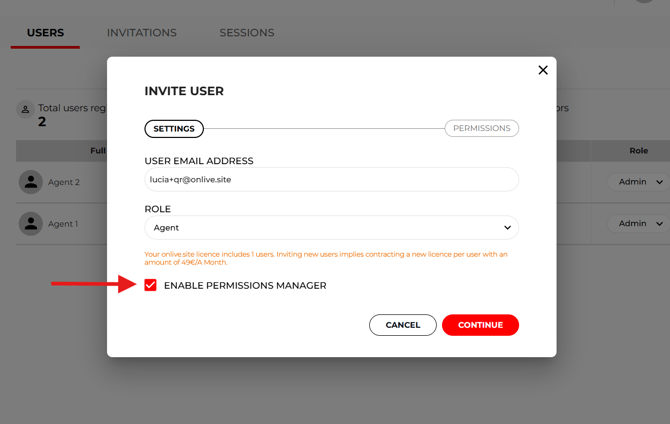
Next, you will need to complete the following information:
- The email address of the user you want to invite.
- The role assigned to the user within the platform.
- The group to which the user will belong.
After that, enable the “Enable permissions manager” option to configure the user’s specific permissions.
On the next screen, select the permissions that will be available to the new user. To allow QR code scanning and validation, you must assign the following permission:
- QR Confirmation
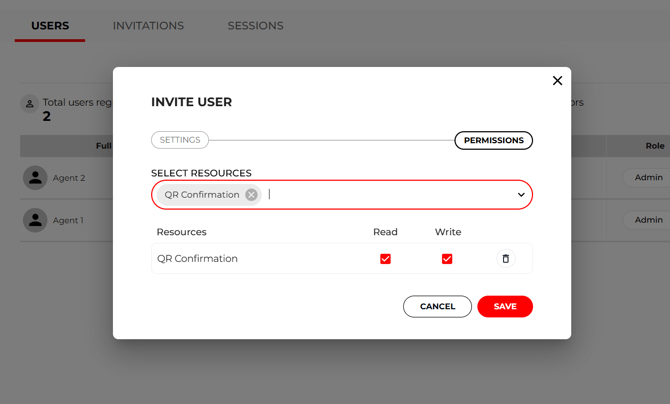
Once the permissions have been configured, complete the invitation process.
The user will receive an email invitation to join the platform.
From this email, they will be able to complete their registration by entering:
- First and last name
- Access password

Once the registration is completed and the user has accessed the platform, they will find the necessary links to download the QR code scanning mobile application.
After installing the application, they can log in using their credentials and start using it to scan and validate appointment QR codes.