From the Services section, it is possible to edit parts of the service availability template in question by clicking on the edit icon (pencil). The main data fields that can be edited by a Agent are explained below. Remember that you might need to scroll down to see all the parameters that can be edited.
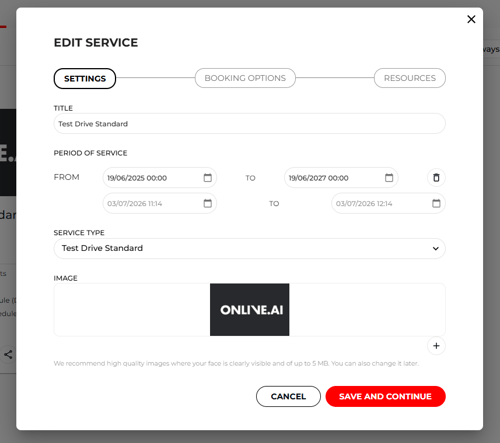
Settings tab:
- Title of de service
- The period during which the service will be available for booking
- Service type
- Image to help you easily recognise the service
- Parameters to be associated with this service
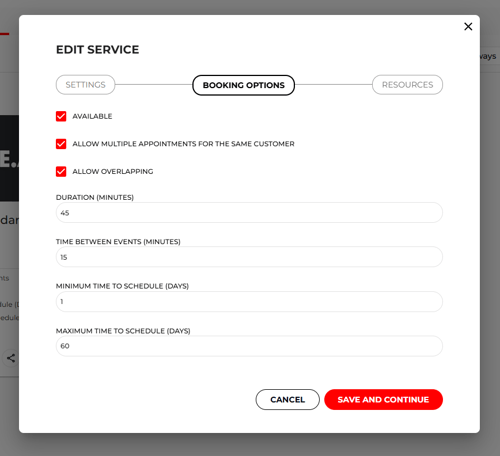
Booking options tab:
-
If the service is available
-
Allow multiple appointments for the same customer
-
Allow overlapping (Users can book as many vehicles as are available, regardless of how many agents are available)
-
Duration (length of service for the customer)
-
Time between events (free time between scheduled appointments)
-
Minimum time to schedule (Minimum notice before the test drive)
-
Maximum time to schedule (Days shown by default in the calendar)
-
Time incrementation (within a one-hour period, when you want users to be able to book appointments; for example: if you choose 30 minutes, the user will only be able to book at 12:00, 12:30, 13:00, 13:30, etc.)
-
Slot start offset (if the timetable has to start at a specific time)
-
Booking until (Until when can this service be booked?)
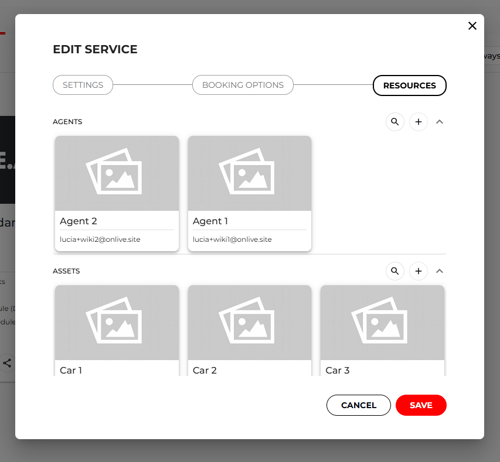
Resources tab:
- Agents (agents associated with this service and their availability)
- Assets associated with this service (assets associated with this service and their availability