
After logging in, you will access the iCalendar section, where you can manage all scheduled and completed appointments for your location. This section is divided into four main views:
video in progress
1. Views

-
Calendar View
Visual representation of all bookings in monthly, weekly, or daily format.
Useful for quickly viewing availability and booking density. - All Appointments
Complete table of all appointments, regardless of status. Ideal for reporting or exporting data. - Future Appointments
Table of all upcoming bookings. - Past Appointments
Table of appointments that have already been completed or cancelled. - Create Appointment (red button)
Manual booking directly using available service templates.
2. Filter and Action Bar
In the Calendar View, the following display options are also available in the top-right corner:
- Monthly View
- Weekly View
- Daily View
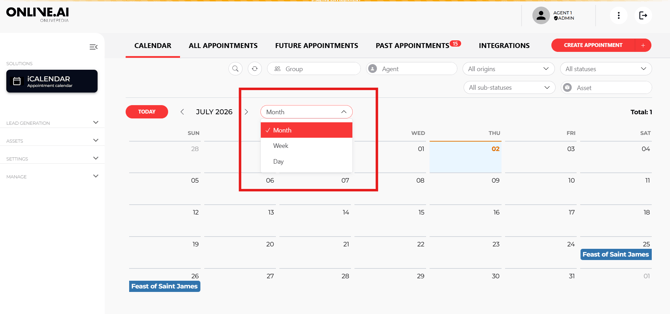
These options help you switch between an overall overview and detailed planning, depending on your needs.
In all four views, a standardized action bar is available above the appointment overview with the following options:
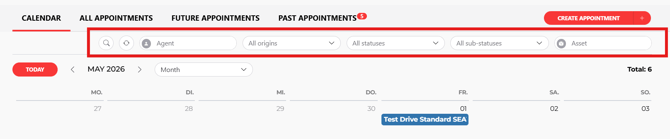
Filter Options and Actions
- Search – Filter by keywords (e.g., name, email address, phone number)
- Refresh
- By Agent (CUPRA Master)
- By Source – e.g., event, website, manual
- By Status – confirmed, cancelled, completed
- By Substatus – e.g., "No Show", "Cancelled by Customer"
- By Asset (Vehicle/Model)
3. Interactive Usage (Calendar View)
The Calendar View allows direct interaction:
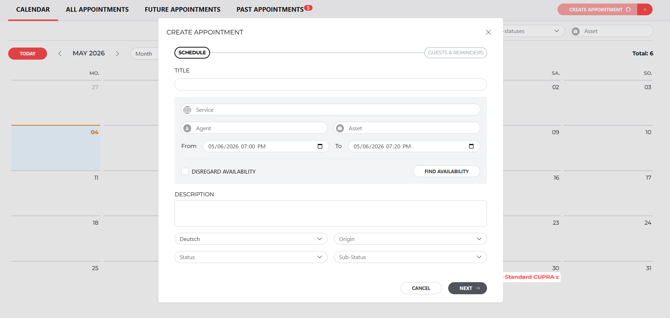
- Click on a time slot → Create a new booking
- Click on an existing appointment → View details and editing options
- Appointments can be moved or edited directly (e.g., new time, new date, different agent)
- An email is automatically sent to the customer whenever changes are made
Detailed steps for manual booking, appointment changes, cancellations, or follow-up processing can be found in the user guides.
4. Horizontal Scrolling
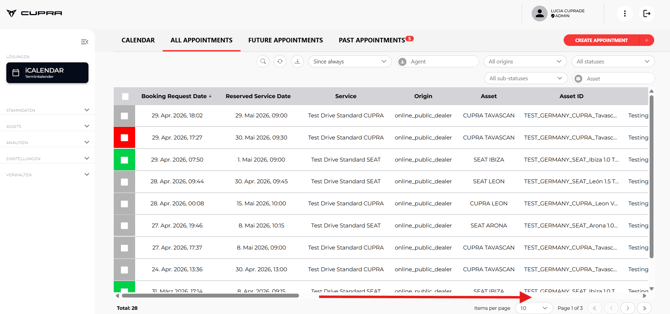
In the dashboard table views (e.g., “All Appointments”), the system displays all fields associated with a booking. Since there are many columns, horizontal scrolling may be required to view all information.
Fields include, among others, customer data, vehicle details, appointment status, source, booked service, rating, etc.
5. Information Display & Editing
By clicking the information icon (shown on the left) for an appointment, a pop-up window opens displaying all stored booking and end-user details.

CUPRA Masters can edit session information using the Edit button located in the top-right corner of the pop-up window.
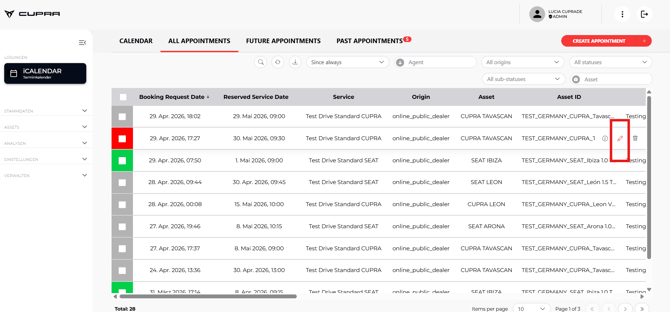
Changes can be made to all fields except comments and ratings submitted by the end user.