![Cupra_White 1.png]](https://knowledge.onlive.ai/hs-fs/hubfs/Cupra_White%201.png?height=40&name=Cupra_White%201.png)
BOOK NOW, DRIVE LATER?
Purpose of Event
- Showcase a car model in a showroom to generate test drive bookings for the days following the event. The test drives do not happen within the same day.
- Bookings follow the Business as Usual workflow but are tracked separately from regular bookings for analytical purposes.
Steps to Manage Event Bookings
1. Generate an Event-Specific URL
- Go to the Services section in the backend system.
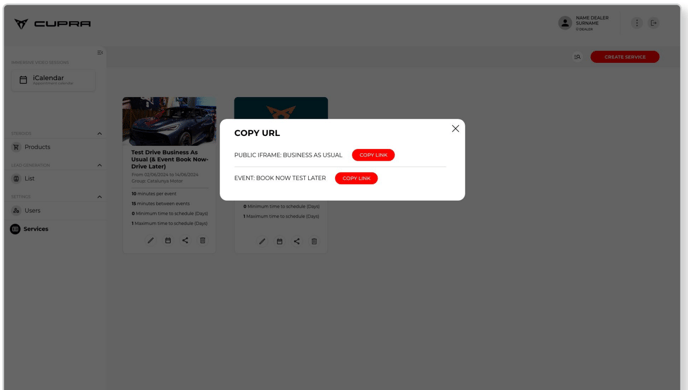
- Locate the service template: “1. TD Book Now, Test Later (public landing pages and event URL)” and click on the sharing button.
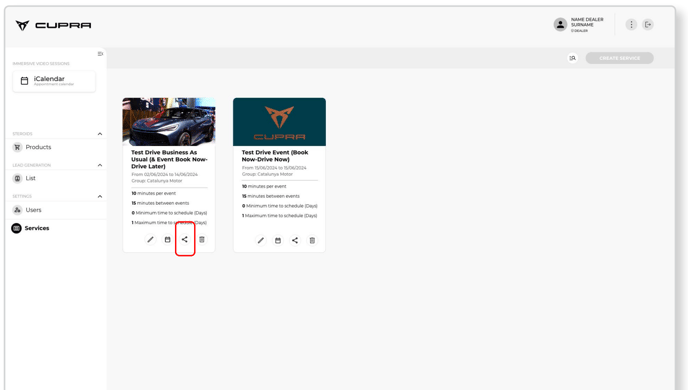
- A pop-up will display two URLs. Use the URL for “Event: BOOK NOW, TEST LATER.”
2. Create a QR Code
- Convert the event-specific URL into a QR code using a QR code generator (e.g., me-qr.com).
- Share the QR code with the sales team and display it on posters, roll-ups, or iPad screens at the event.
- Attendees can scan the QR code to make bookings directly from their mobile devices.
3. Track Event Bookings in the System
- Bookings made via the event-specific URL will be recorded with the SOURCE field as “Online-Event-Book NowDrive Later.”
Manual Booking by CUPRA Masters
If attendees need assistance booking:
- Access the Services section in the backend.
- Select “1. TD Book Now, Test Later” and click the calendar icon to open booking details.
- Enter the booking information, including:
- Date and time.
- Attendee details.
- Set the SOURCE field to “Manual-Local Event.”
- Add relevant comments about the event in the Comments section.
- Confirm the booking:
- The user will receive an email with a validation code.
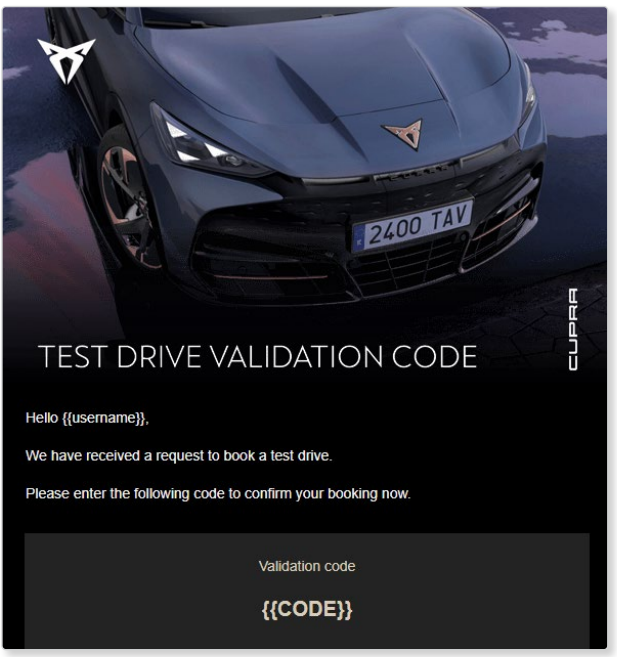
- Request the attendee to share this code to finalize the booking.
- Note: The booking cannot be completed without this code. Within this e-mail, part of the T&C for the test drives get accepted by the user. Therefor, it is very important that the user uses their own e-mail and accepts these conditions by providing the validation code.
- The user will receive an email with a validation code.
Internet Connection
Ensure a reliable internet connection at the event venue to facilitate online workflows and manual bookings.
Adjust Car Availability (If Applicable)
-
Event During Test Drive Hours:
- The car used for display must be marked Unavailable in the Business as Usual Test Drive template.
- Adjust availability as soon as event dates are confirmed to prevent double bookings.
- In case of any questions, please contact our support team to assist you hereby.
-
Event Outside Test Drive Hours:
- No changes to car availability are needed.
By following these steps, bookings from the event will be properly tracked and managed, ensuring smooth workflows and accurate analytics.