![Cupra_White 1.png]](https://knowledge.onlive.ai/hs-fs/hubfs/Cupra_White%201.png?height=40&name=Cupra_White%201.png)
This chapter explains the steps for manually scheduling a test drive with a customer from the service availability template. A demo video is also available in the link below about this section.
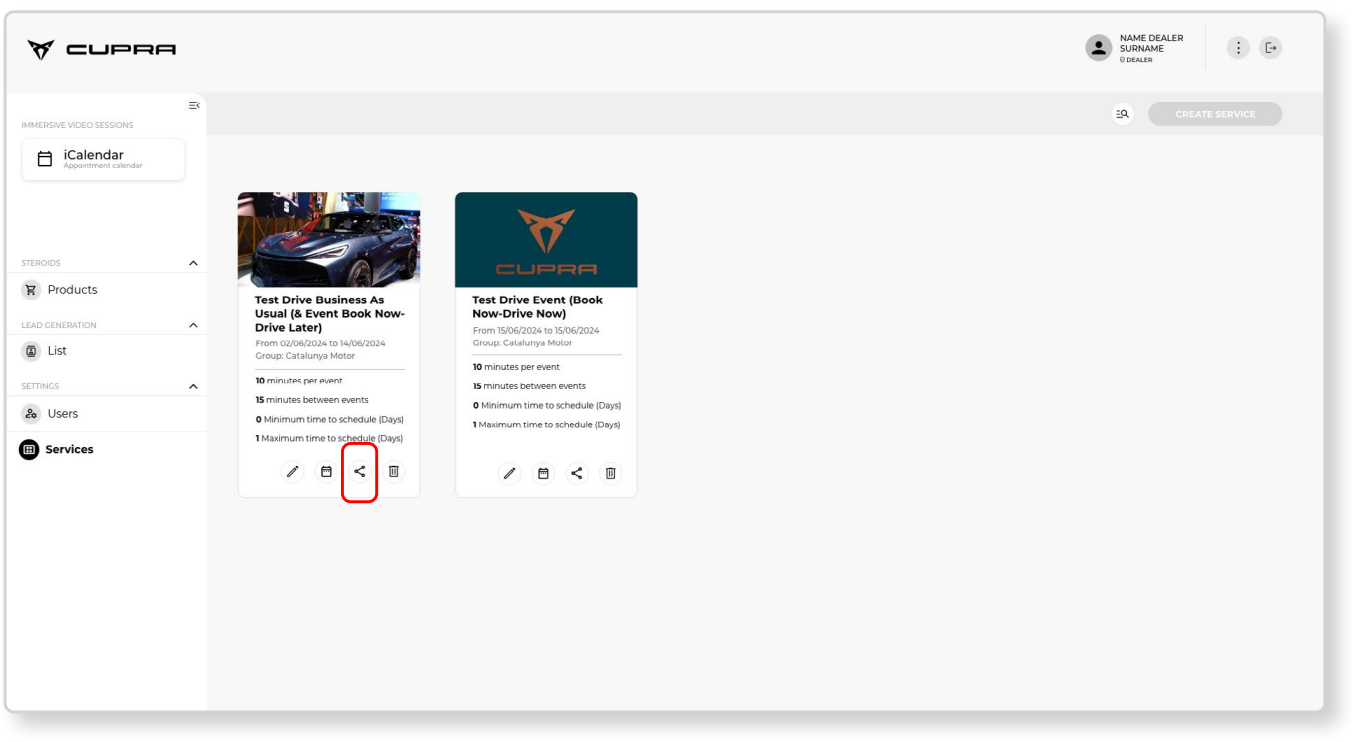
1. Click on the calendar button for the service you want to schedule and a pop-up window will open.
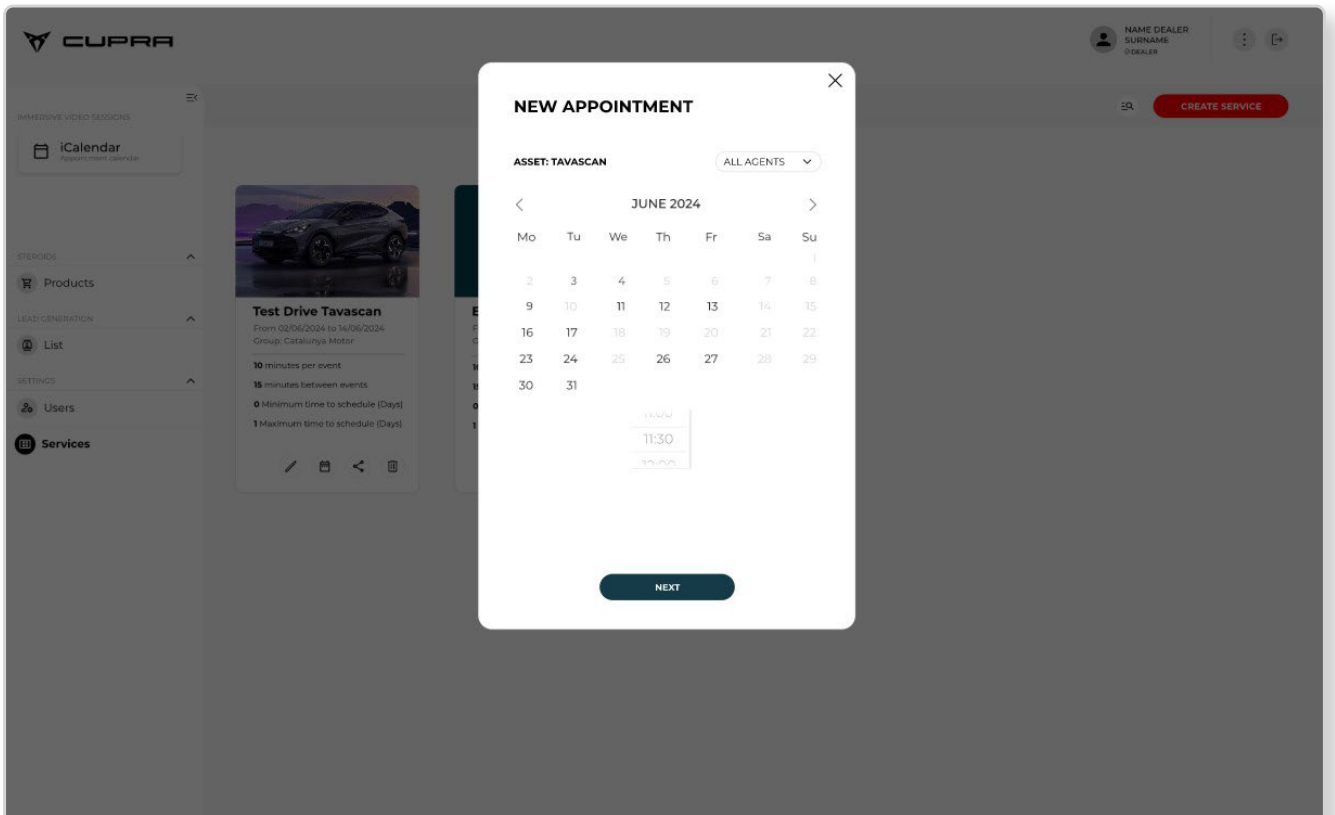
2. Select the date and time that the user wants from the available options. If there are more than one CUPRA Masters in a group/dealership, you will need to select the calendar for the specific agent to whom the booking will be assigned.
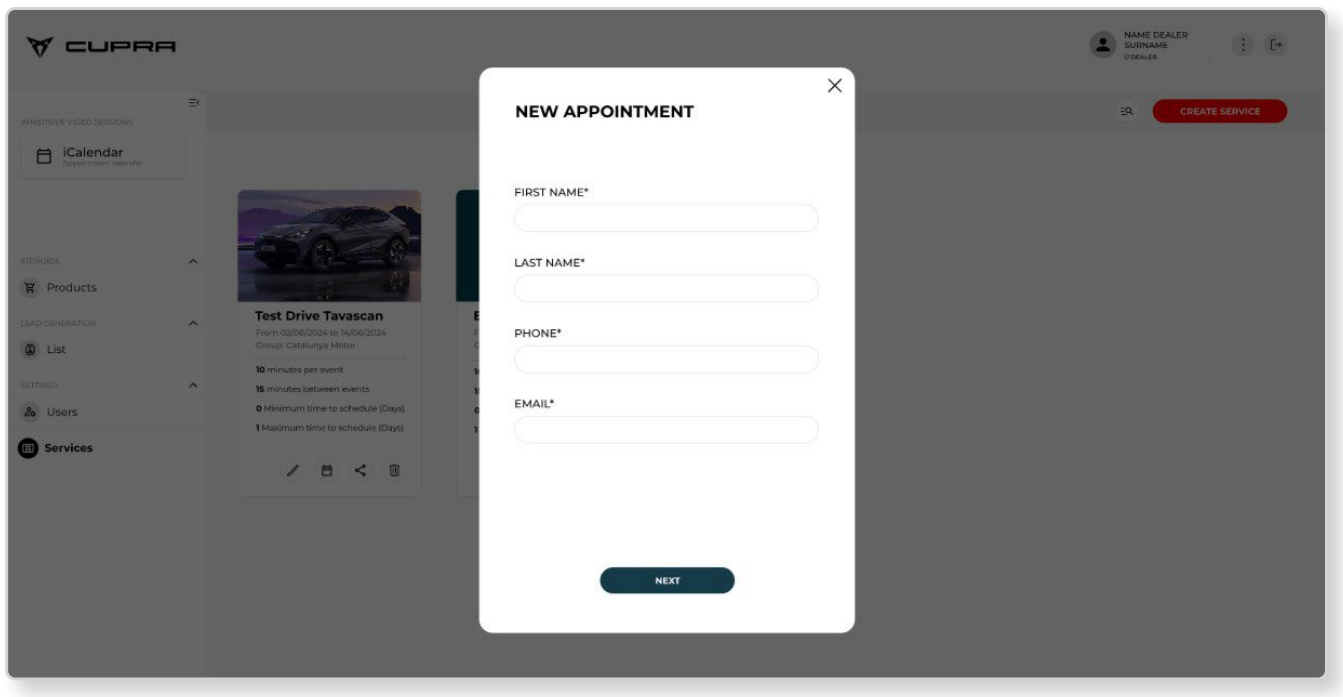
3. Next, you will need to enter all the information about the end user wishing to schedule a test drive.
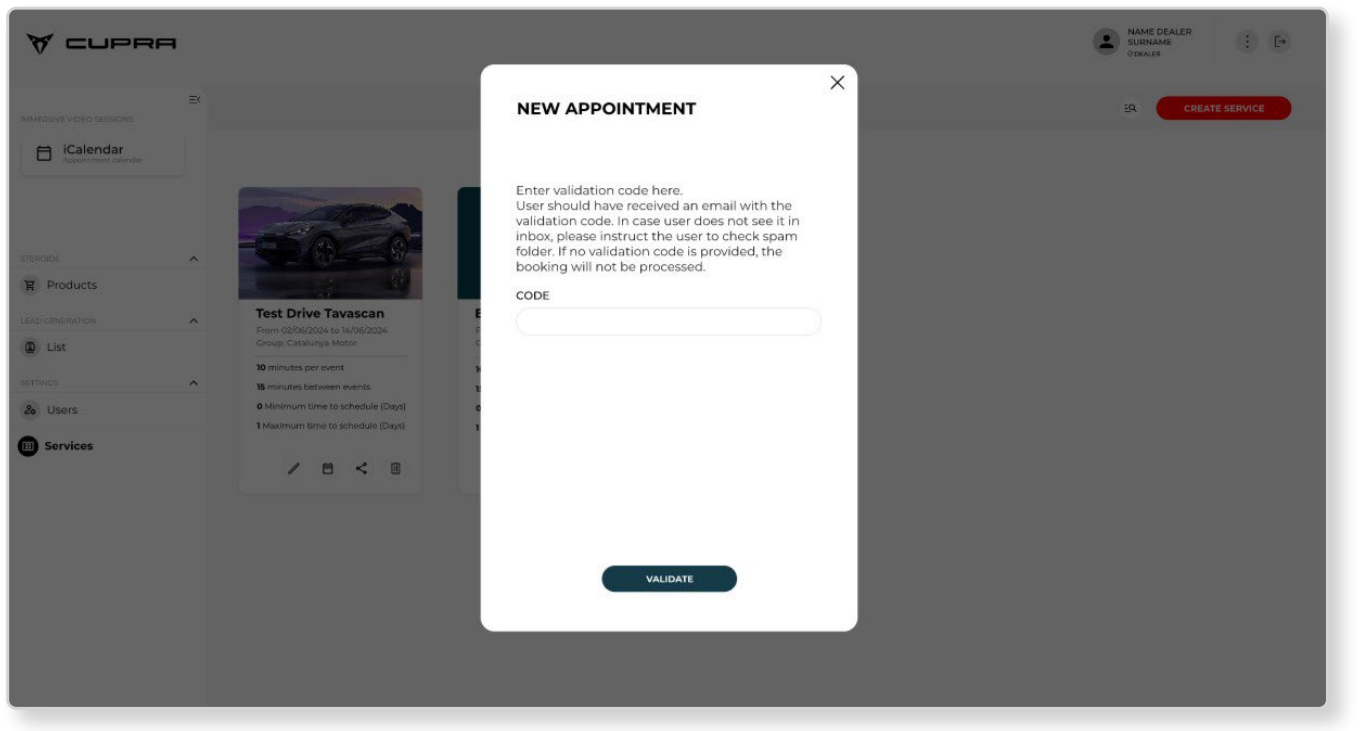
4. The next step will send an e-mail to the address provided by the end user with a validation code, which they will need to tell the agent so the test drive booking process can be finalised.
It is very important for this validation code sent to the user’s e-mail address to be entered because, without it, the booking cannot be finalised.