![Cupra_White 1.png]](https://knowledge.onlive.ai/hs-fs/hubfs/Cupra_White%201.png?height=40&name=Cupra_White%201.png)
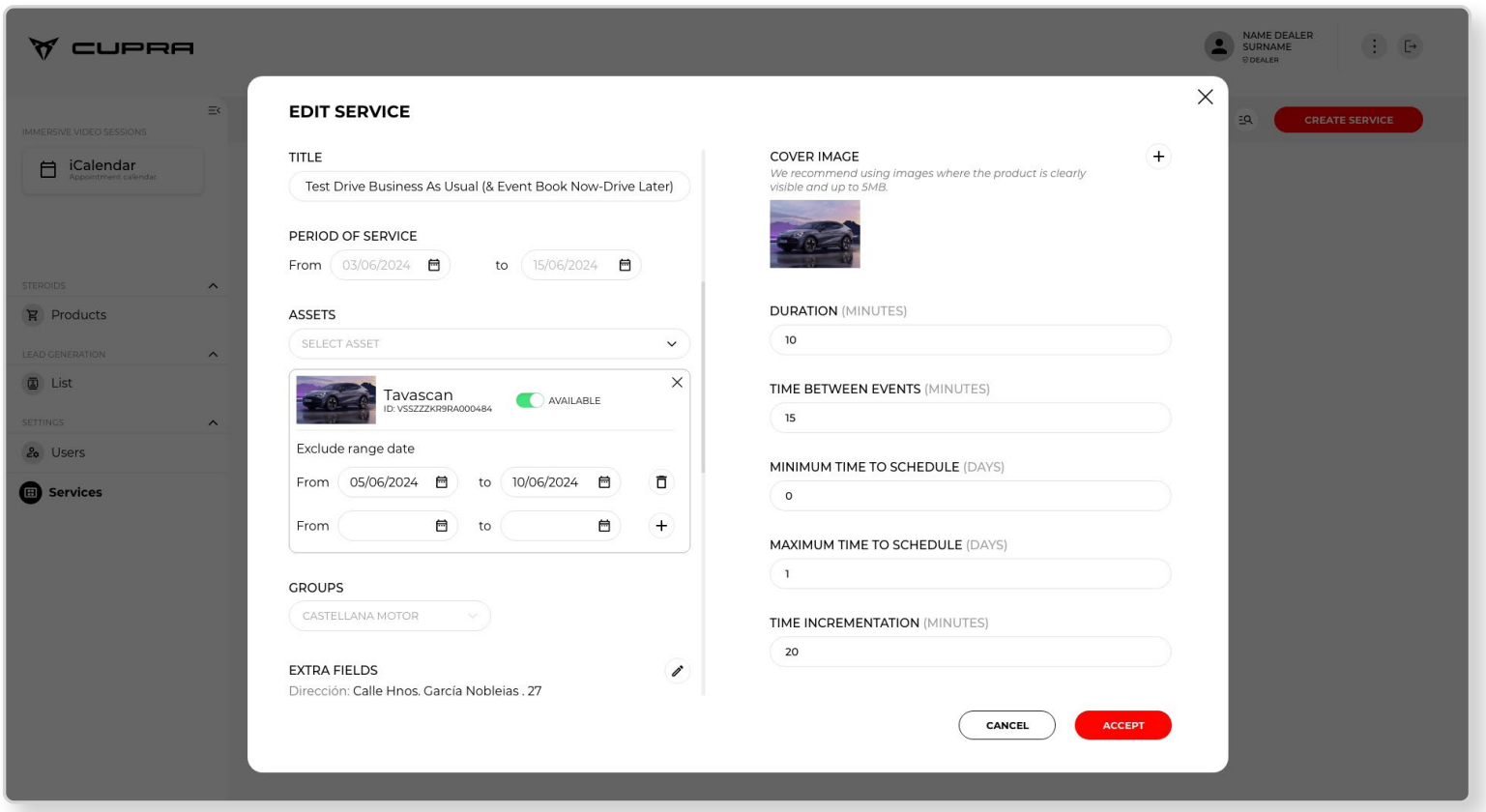
From the Services section, it is possible to edit parts of the service availability template in question by clicking on the edit icon (pencil). The main data fields that can be edited by a CUPRA Master are explained below:
- Title
- Service period (**During the pilot programme, this field can only be edited by the market Administrator/Importer)
- Asset associated with this service (**During the pilot programme, this field can only be edited by the market
Administrator/Importer)
- Group - This is predefined
- Service duration
- “Buffer” time between services
- Minimum notice before the test drive
- Days shown by default in the calendar
- Extra fields (These fields are the ones that will appear in the notification e-mail templates)
Remember that you might need to scroll down to see all the parameters that can be edited.
The video below shows an example with all the steps:
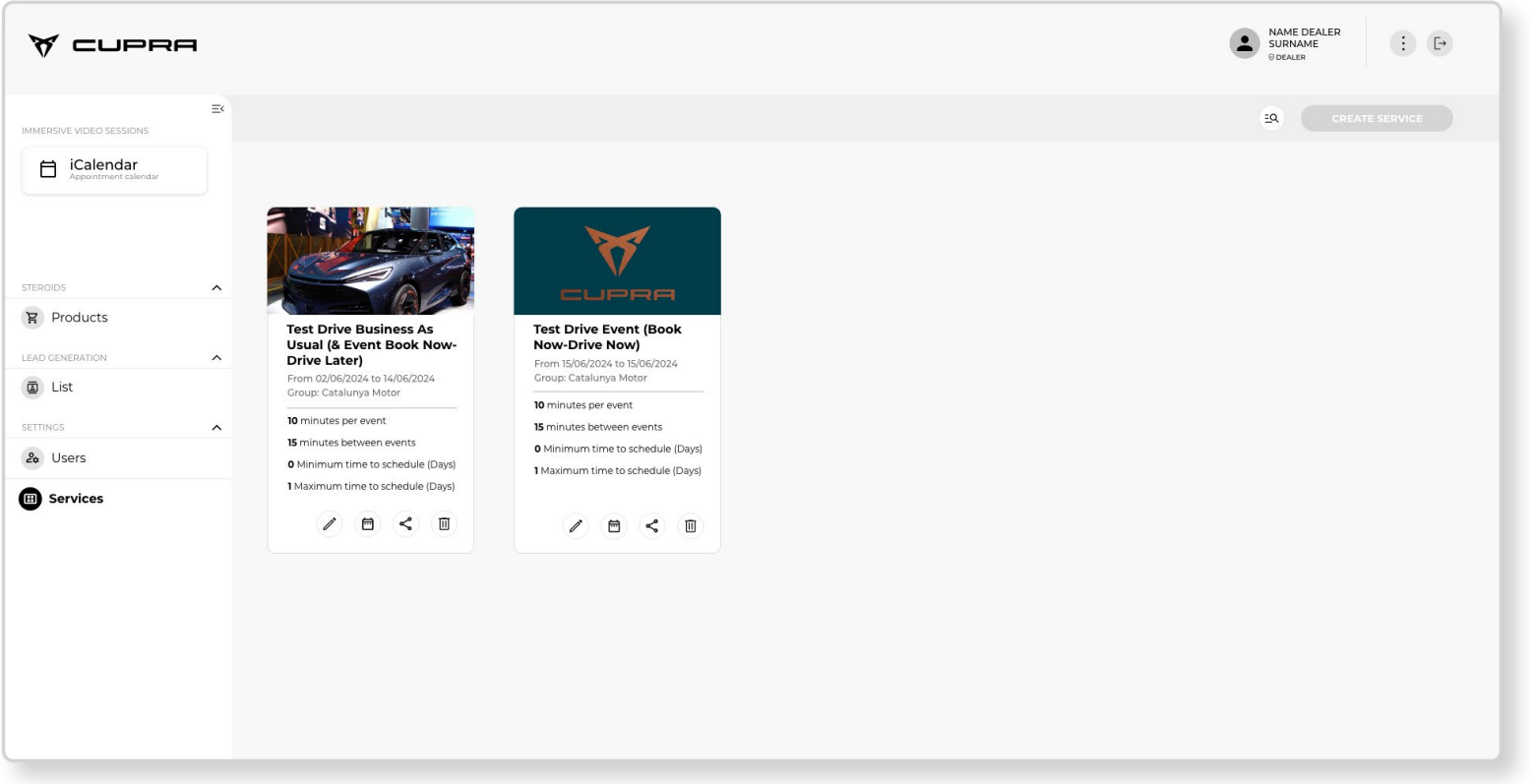
Clicking on the edit icon will open a pop-up window with all the information about the service in question. Here it will be possible to edit the service title, the associated asset, the duration of the service being offered and the time you want to leave between the booking by one user and the next.
During the pilot programme, the dates and assets (asset ID) for the services can only be edited by the account administrators due to the rotation of the Products available in the various locations.