![Cupra_White 1.png]](https://knowledge.onlive.ai/hs-fs/hubfs/Cupra_White%201.png?height=40&name=Cupra_White%201.png)
- Side scrolling
- Details
- Editing
- Filtering
- Downloading tables
1. SIDE SCROLLING
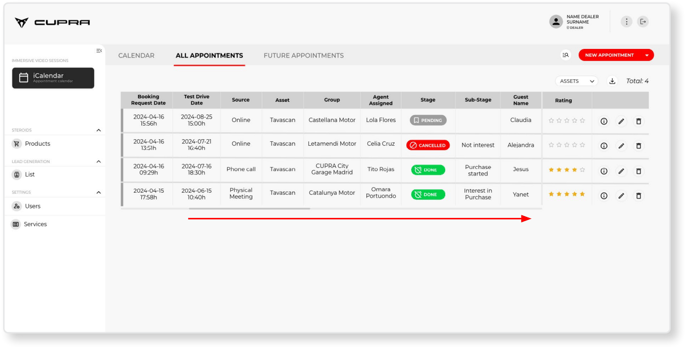
The sessions display panel shows the CUPRA Master all the data fields associated with the booking in table format. Given the number of them, remember that you will need to scroll to the sides to see all the various columns.
The data fields in a booking, with definitions and examples of each, are shown below.
2. DETAILS
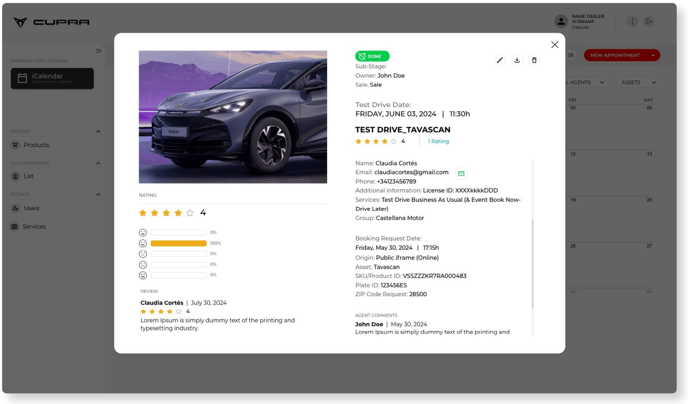
Clicking on the information icon (i) will open a pop-up window with all the information about the test drive booking and the end user with which that session has been scheduled.
3. EDITING
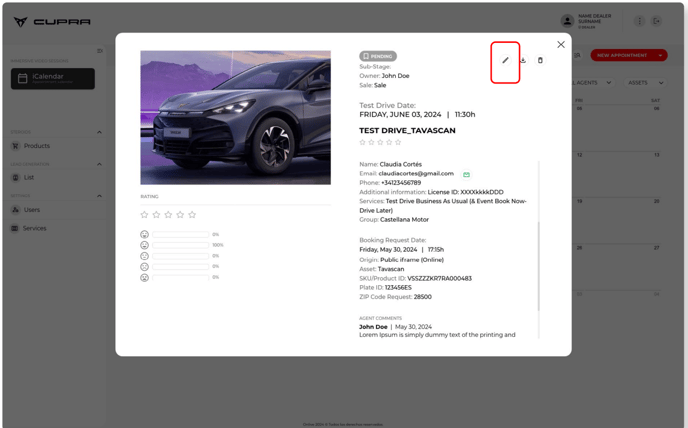
CUPRA Masters can edit any of the information related to a session by clicking on the “Edit” icon in the top-right of the pop-up window, except for the comments and rating from the end user.
4. FILTERING
The market admin (importer) can filter the information by group or agent (dealership or CUPRA Master).
Given that there will only be one CUPRA Master during the pilot programme, the dealership will only see a single option in the “Agent” filter.
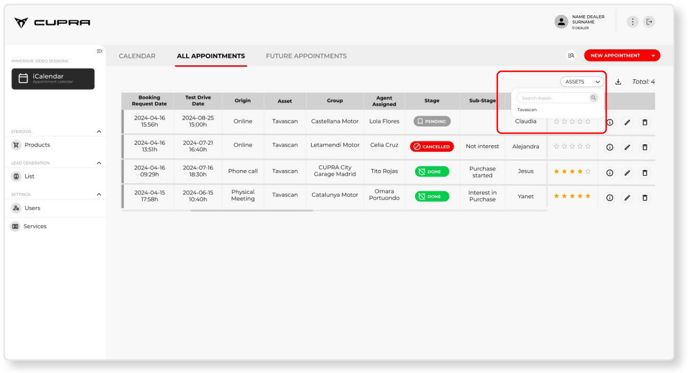
5. DOWNLOADING TABLES
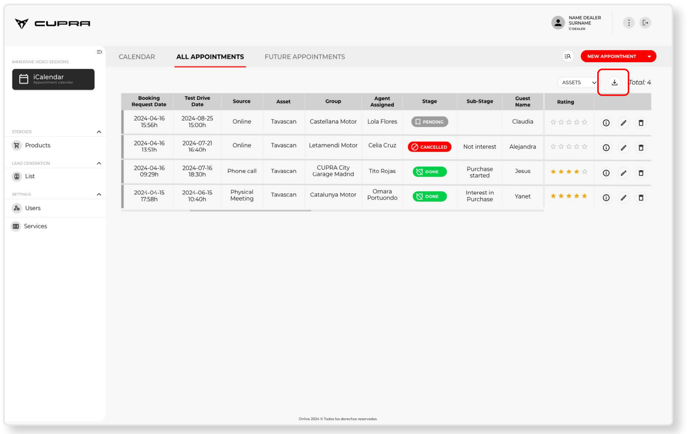
The entire database of scheduled sessions can also be downloaded in .csv format. To do this, simply click on the “Download” icon located in the top-right of the tab.