
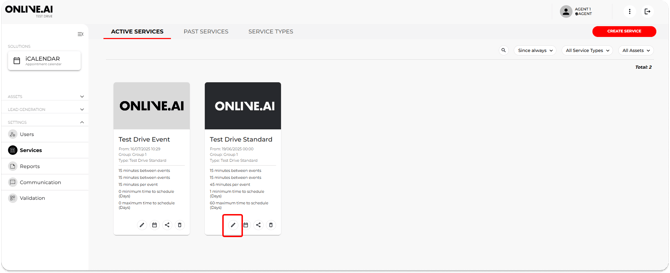
1. Access the Service Template:
-
- Log in to the system and navigate to the Services section.
- Select the service template that you wish to update.
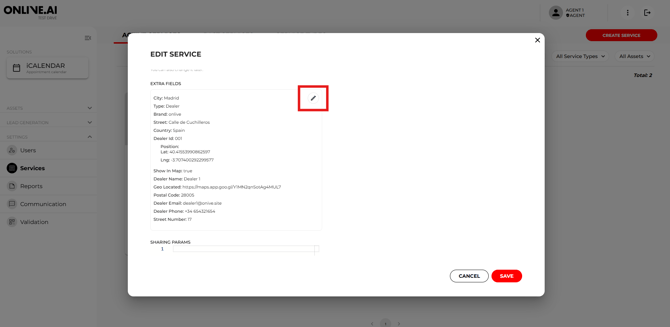
2. Edit Additional Fields:
-
- Click "Edit template" to open the editing view.
- Navigate to the "Extra Fields" section.
- Click the pencil icon to edit the details.
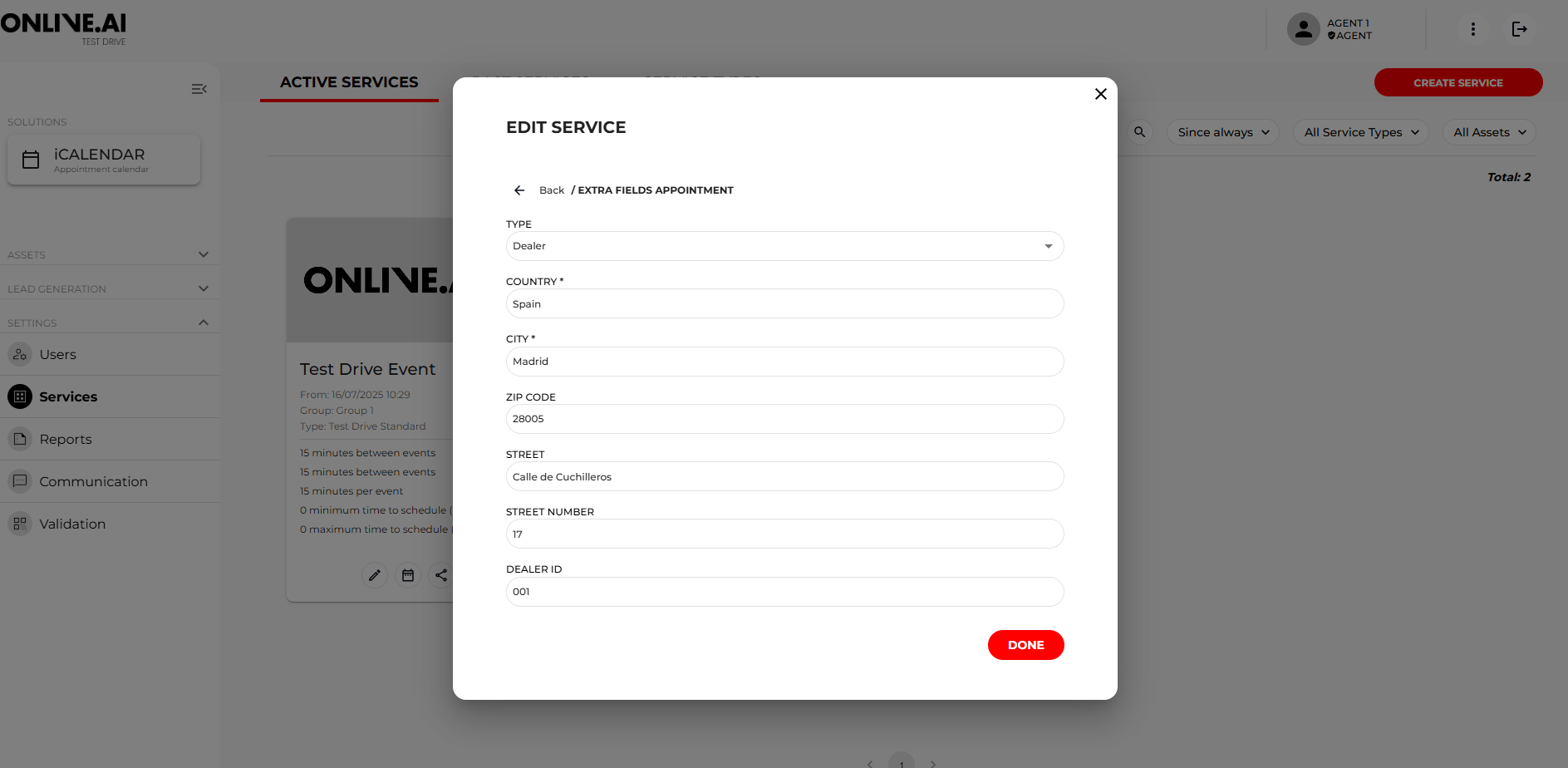
3. Update Contact Details:
-
- Email: Update the dealerEmail field with the new email address.
- Address: Update the address fields with the new address.
- Phone: Update the dealerPhone field with the new phone number.
4. Save Changes: After making the necessary updates, ensure you save the changes to the service template.
5. Verify Updates: Check the confirmation, reminder, and other automatic notification templates to confirm that the updated contact details are reflected correctly.
By following these steps, dealers can ensure that users receive accurate and up-to-date contact information in all automated notifications.