
1. Mark Unavailability as "Out of Office"
1. Access Settings:- Click on “Settings” in the top-right corner (on the photo icon).
- Navigate to “My availability.”
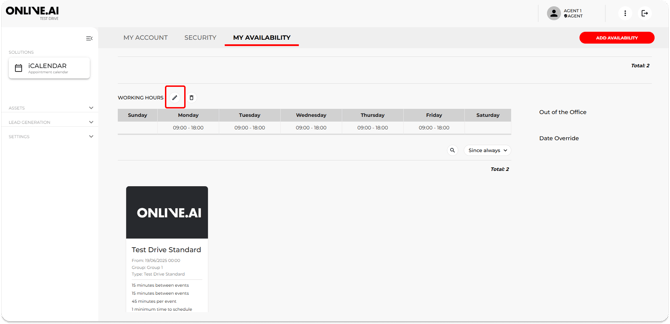
3. Edit the Calendar:
- Reflect the unavailability in the calendar. In case of the Agent being absent for half a day for example, you can adjust the opening times.
4. Add “Out of Office”:
- Specify the dates when the Agent will be absent. This is especially helpful for full days of absence.
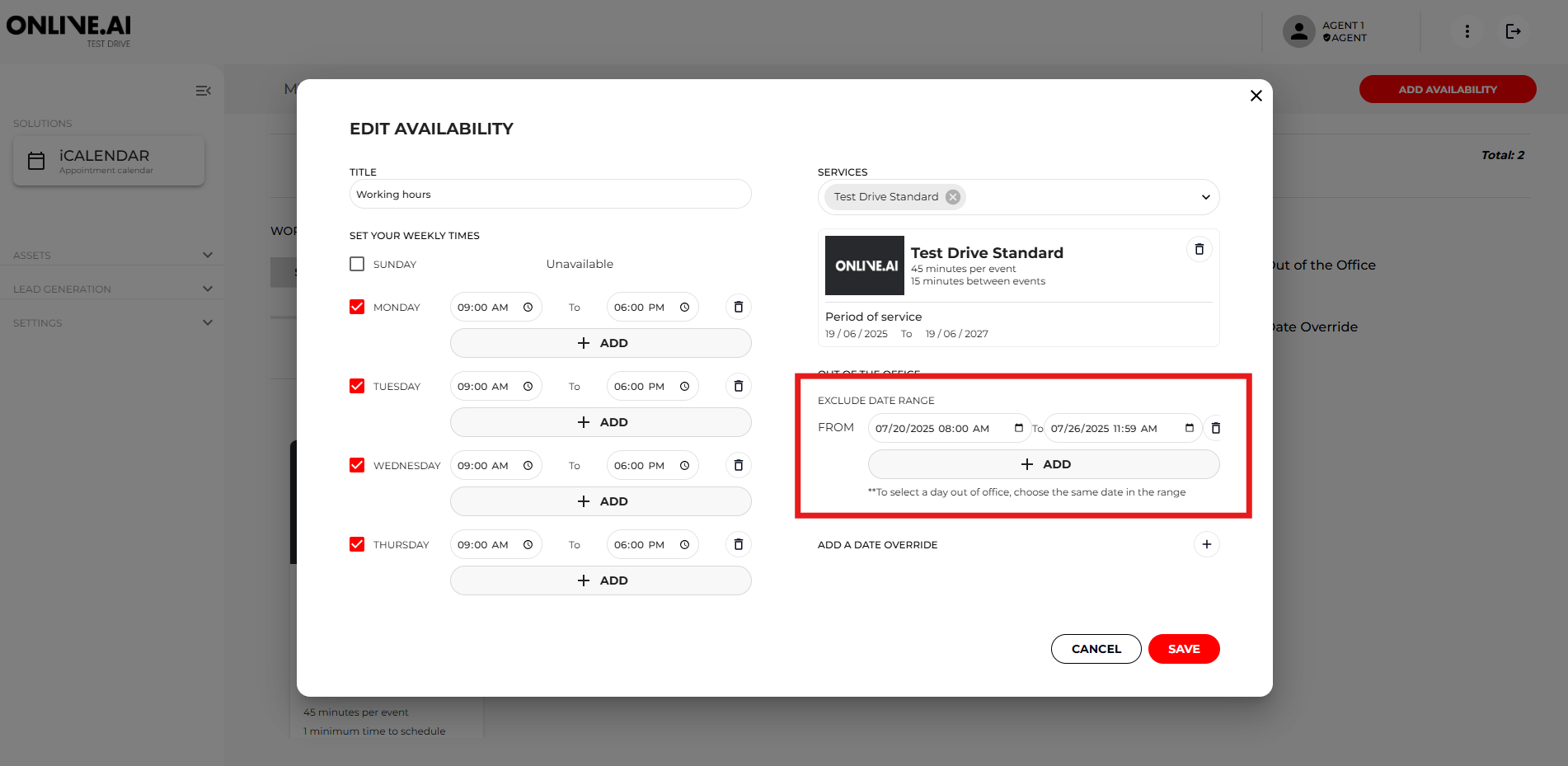
This step ensures that no timeslots are available for online or manual bookings during the specified period.
2. Handle Existing Bookings
If Absence Was Foreseen
- No Replacement Available:
- Cancel or reschedule all bookings for the affected dates. You can cancel them directly by going into Future Appointments and filtering for the Agent.
- By canceling an appointment in the VMS platform, the user will receive a cancelation mail. However, we strongly advise on calling the user to inform him about the cancelation.
If Absence Was Unforeseen
- Illness:
- Cancel bookings and set the Sub-status to: “Cancelled by Agent: sickness.”
- By canceling an appointment in the VMS platform, the user will receive a cancelation mail. However, we strongly advise on calling the user to inform him about the cancelation.
- Other Reasons:
- Cancel bookings and set the Sub-status to: “Cancelled by Agent: Other reasons.”
- In the “Comments from the agent” section, explain the reason for cancelling the booking.
- By canceling an appointment in the VMS platform, the user will receive a cancelation mail. However, we strongly advise on calling the user to inform him about the cancelation.
By marking unavailability and appropriately managing bookings, the Agent ensures a smooth process, minimizing inconvenience to customers.