
Imagine an event organised by a market importer or dealership at which a model is presented and attendees are allowed to book and take a test drive during the course of the event.
The goal for these events is to conduct as many test drives as possible during the day of the event. These bookings will be processed as special bookings given that the test drive parameters may be different to those for “Test Drive Standard” test drives.
For example, they may have a different duration, a different buffer time between test drives or a shorter minimum prior notice period.
As with the other type of events, at an analytical level, it is also important here to identify which bookings come from this type of event (users who attended the event) versus which bookings come from normal browsing by users on the landing page of the dealership/importer (users who did not attend the event).
To that end, the Agent or importer will need to go to the Services section and select the service template (based on the steps explained previously). This template can be edited if necessary with the parameters of the test drives that will take place
during the event (duration, buffer, etc.).
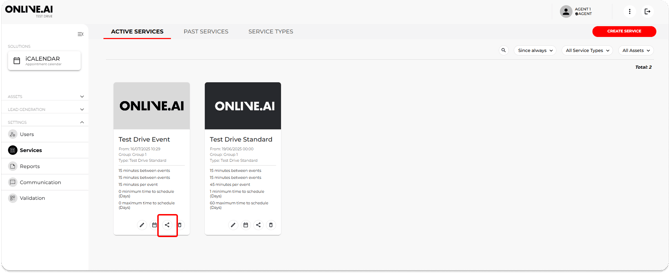
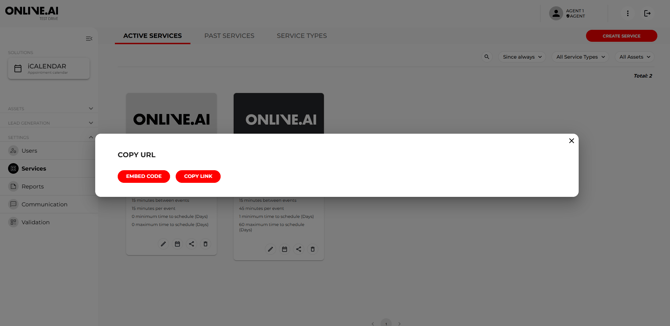
The Agent must then copy the URL for the Service Type “Test Drive Event”.
This URL will enable the creation of bookings with characteristics that are different from standard bookings made during business as usual via the landing pages or commercial activity. Furthermore, this URL contains a UTM and code that will enable bookings associated with this event to be identified.
This URL can be transformed into a QR code on any page that converts URLs to QR codes (e.g. https://me-qr.com/qr-code-generator/qr). Once a QR code has been generated, we recommend sharing it with the entire sales team present at the event
and including it on the posters, roll-ups and screens, etc. used for the event to make it easier for end users/event attendees to scan the QR and make bookings online straight from their own mobile devices.
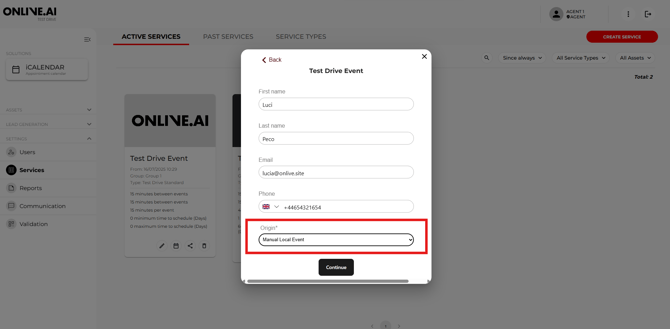
Alternatively, the Agent will be able to create bookings and test drives manually for users attending the event.
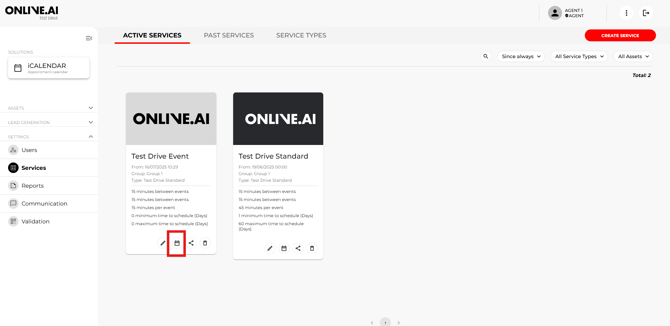
As explained previously, the Agent will need to go to the Services section to do so and click on the calendar icon for the specific service template Service: “Test Drive Event"” to enter the booking details (date and time selection, details of the user, etc.).
Once the test drives have been taken, the Agent must change the booking Status from “Pending” to “Done” and fill in the other fields that enrich the specific information on each test drive.