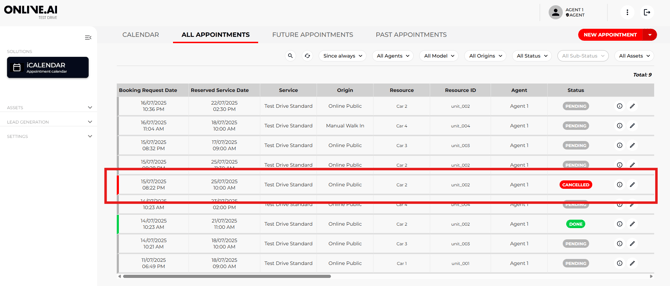
Imagine that an end user/customer calls a dealership asking to cancel a Test Drive.
Below shows a step-by-step walkthrough about what an Agent needs to do to cancel a Test Drive booking over the telephone.
The steps to follow are:
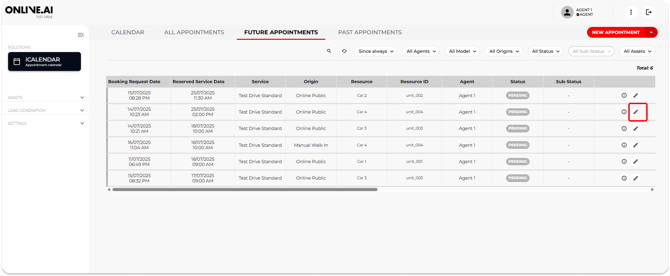
- Open the information about the booking in question, either from the Calendar view or the “All appointments” or “Future appointments” tabs.
- Click the “Edit” icon and the event panel will open with all the information.
-
Change the Status from “Pending” to “Cancelled”.
-
Change the Sub-status of the booking to the most suitable option based on the reason for cancelling (see Chapter 3.2.2. for more details).
-
Leave any pertinent comments in the “Comments from the agent” section.
-
Save changes.
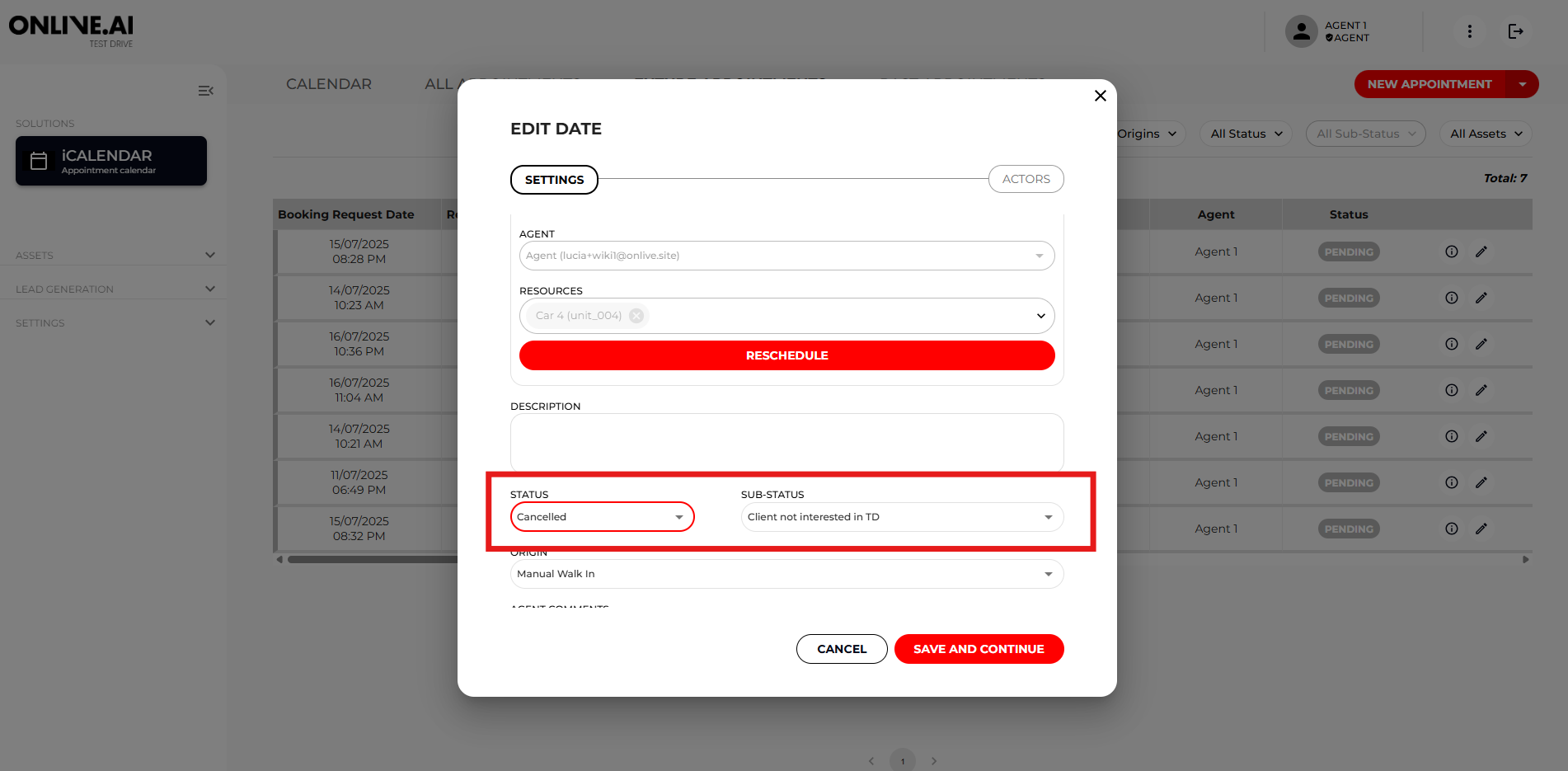
This Status change will automatically send a cancellation confirmation e-mail to both the end user/customer and the Agent.
The appointment will be deleted from the Calendar view (leaving the timeslot available for other bookings), but it will not disappear from the “All appointments” tab, where the entry will remain with a Status of “Cancelled”.