
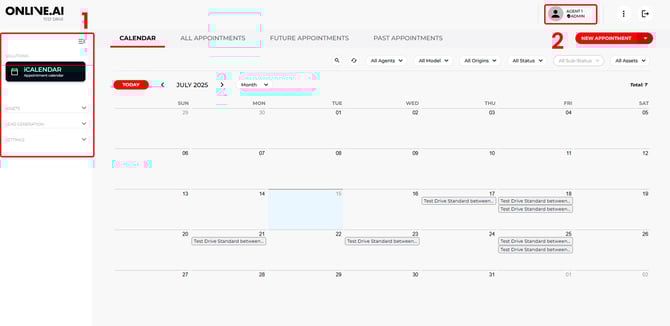
After logging in to the system backend, a screen like the one shown below will be displayed with two main menus.
1) The left-hand vertical bar/menu with a series of main blocks.
2) A settings menu in the top-right of the horizontal header.
1. iCalendar
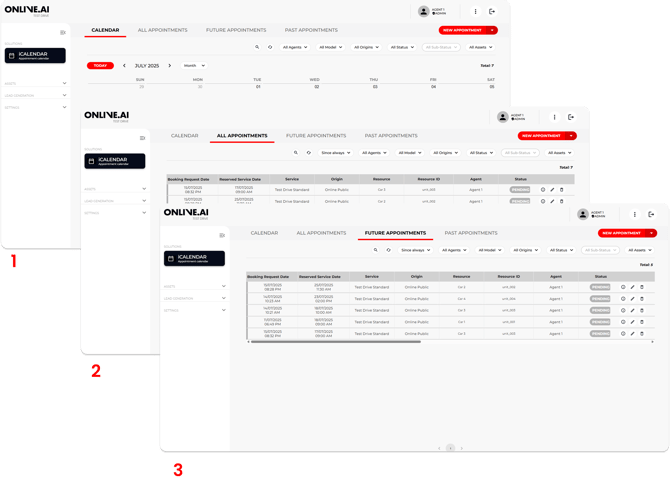
This section will show all the scheduled test drive sessions for each dealership. The Agent will have access to various tabs for different views: 1) Calendar; 2) “All appointments” tab; 3) a tab with “Future appointments”; and 4) a tab with “Past appointments”. These views provide a quick and simple overview of all the information on test drive bookings and the end users who made those bookings. This section will be explained in further detail in Chapter “3. How the iCalendar section works” of this manual.
2. Products (vehicles)
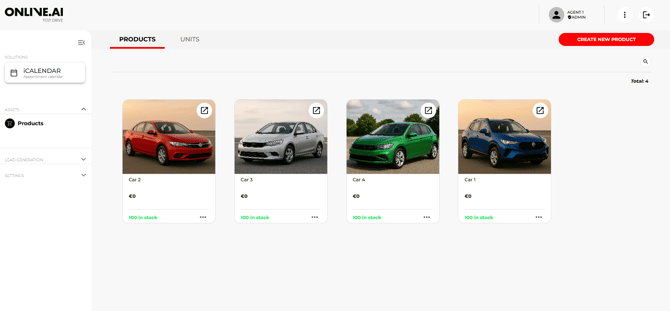
This section will show the products (vehicles) that can be booked for test drive appointments. Each product (vehicle) file is enriched with specific information about the models and the actual cars available. Further details about this section are provided in Chapter “4. Steroids” of this manual.
3. Generated Lead List
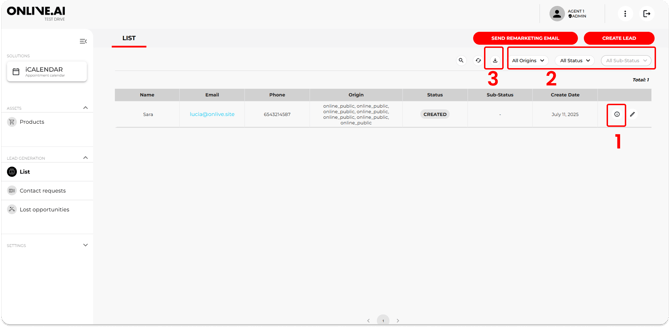
This section will show a list of unique end users, with the most relevant details visible in the table. Various actions can be taken from this screen, such as:
(1) View all activity by the end user within the system environment.
(2) Perform searches via the magnifying glass icon.
(3) Download all the information in .csv format.
4. Settings
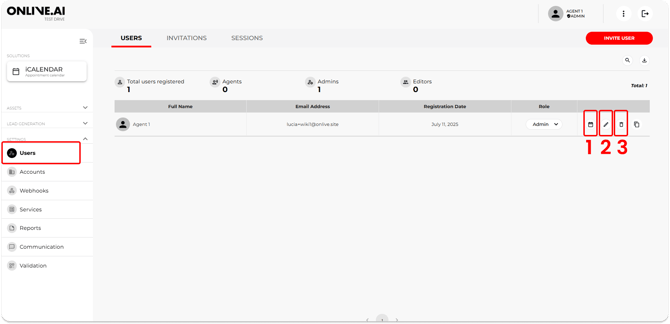
- USERS: Agents can access this section to view other Agents who may potentially register in the system and belong to the same group/dealership.
The market admin (importer) can open this section to see all the users registered in the system in their market and to which group/dealership they belong. Admin users will also be able to view the availability of each Agent in their same group (1), edit any data they need (2), or delete a user from the system (3).
The dealership will only be able to view a list of users/Agent Masters within the same group as them.
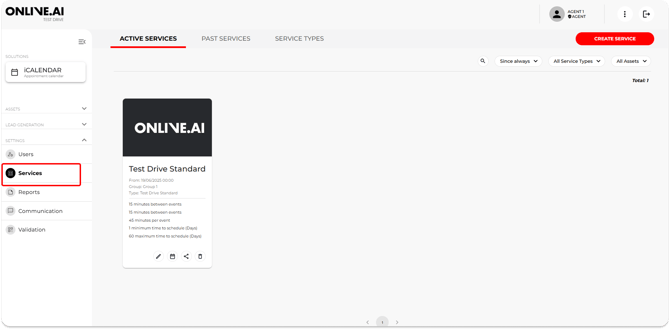
- SERVICES: A service is understood as a bookable activity involving an Agent and a vehicle with a series of configurable parameters (eg: duration of the service, dates of availability of the service, products related to the service, etc).
In this section, which is one of the most relevant sections of the backend for the project, we visualise the different services offered by the dealer and their availability templates. All dealers will already have a service template ‘TEST DRIVE STANDARD’ which will be the one connected to the importer's and/or dealer's landing page. For local events, other templates with specific features can be created. This section will be further detailed in section 1.6. Service availability templates.
5. Profile
This section displays the availability and details of each Agent and allows that information to be configured.
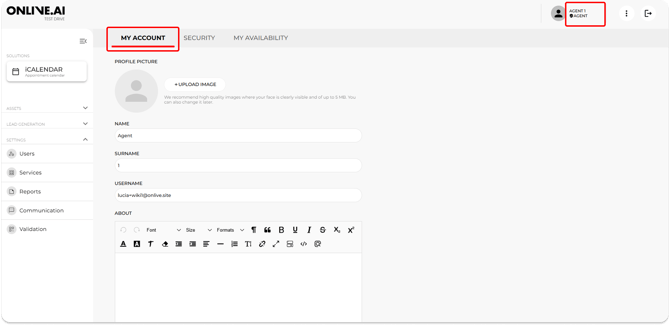
- MY ACCOUNT: The Agent will be able to add their own personal data in this section, such as name, surname, e-mail address, telephone number and any other relevant information about their role. They will also be able to add a profile image at the top, although this information will not be visible to end users within the “Instant Booking” project.
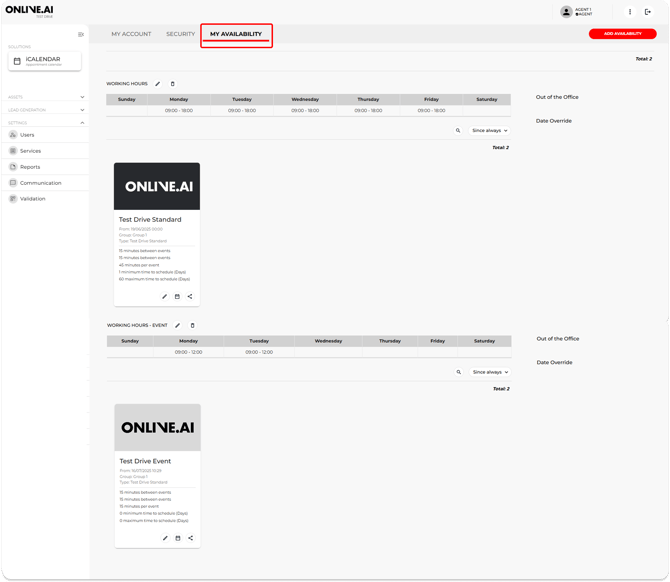
- MY AVAILABILITY: This tab can be used to configure the availability parameters of the
Agent belonging to a dealership) and the services linked to those availability parameters.
One Agent may have several calendars with different services linked to each calendar because they might not necessarily have to spend the same amount of time on one service than on another.
The example screenshot below shows an Agent with two separate calendars:
- “Test Drive Standard” refers to parameters and working hours with daily availability from 09:00 to 18:00.
- “Test Drive Event” is defined with availability on Monday and Tuesday from 09:00 to 12:00.
6. Three dots
The Agent can click this button to select the language used in the system.

7. Log Out
This button is used to log out from the system.
